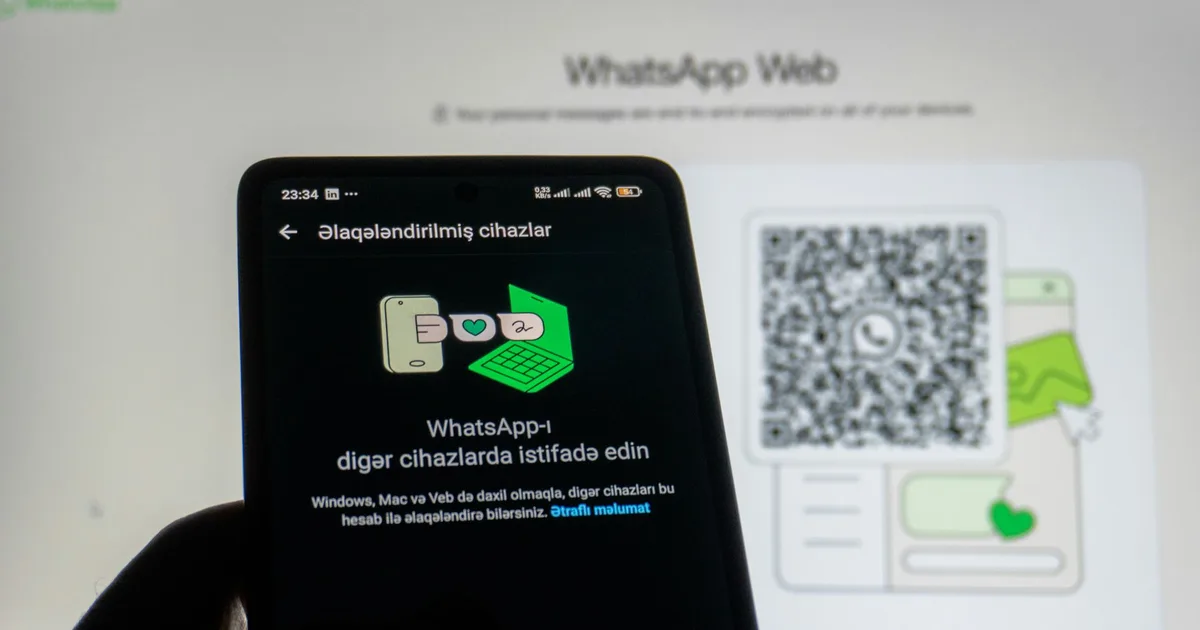
If you spend your day typing replies on your phone, WhatsApp Web is about to change your life. It lets you message from your laptop or desktop browser using a full keyboard, which beats tapping on a phone screen any day.
For Ghanaian office workers and students on slow data, WhatsApp Web is a lifesaver. The browser version uses less data than sending files on mobile, and you keep your phone free while chatting away.
What is WhatsApp Web?
WhatsApp Web is the desktop version of the WhatsApp app. You open it in your browser (Chrome, Firefox, Safari, or Edge), link it to your phone, and your chats appear on your laptop screen. You can send messages, share files, and manage groups without touching your phone.
The big upgrade: WhatsApp Web now works even if your phone loses signal for a while. Years ago, your phone had to stay online the whole time.
How to Set Up WhatsApp Web
Step 1: Open WhatsApp Web on your laptop. Go to https://web.whatsapp.com in any browser.
Step 2: Scan the QR code with your phone. Open WhatsApp on your iPhone or Android, tap Settings (iPhone) or the three-dot menu (Android), then tap Linked devices. Hit “Link a device” and point your phone camera at the QR code on your screen.
Step 3: Your chat list appears on your laptop. That’s it. You’re now logged in to WhatsApp Web.
No QR code scanner? You can also log in with your phone number instead. On the WhatsApp Web sign-in page, tap “Log in with phone number,” enter your number, and WhatsApp will give you an eight-digit code to confirm on your phone.
How to Use WhatsApp Web
Once you’re logged in, it works exactly like the mobile app. Click a chat to open it, type your message in the box at the bottom, and press Enter to send.
To attach files: Click the paper clip icon, select a document or photo from your desktop, and send it. Much faster than mobile on weak data.
Keep Your Chats Private
Your laptop stays logged in even after you close the browser. If someone else uses your computer, they can see your messages. To lock it down: In WhatsApp Web, click the settings gear icon, go to Privacy, and turn on “App lock.” Set a password, and WhatsApp will ask for it every time you open the page.
This password only works on that one browser. If you log out and back in, you’ll need to set a new one.
Quick Troubleshooting
WhatsApp Web stopped working? Your phone needs to stay connected to the internet (WiFi or data). If your phone loses signal, WhatsApp Web might lag or go offline temporarily.
Want to log out? Click the three-dot menu and select Log out. You’ll need your phone to scan the QR code again to sign back in.
Why Use WhatsApp Web in Ghana?
On MTN MoMo data or Vodafone bundles, WhatsApp Web uses less data than mobile when sharing files. If you’re at work or studying with your laptop on WiFi, you free up your phone for calls and other apps. And typing long messages on a keyboard beats thumb-typing any day.
What to do now: Go to https://web.whatsapp.com on your laptop, scan the QR code with your phone, and start messaging from your desk.
Leave a Reply