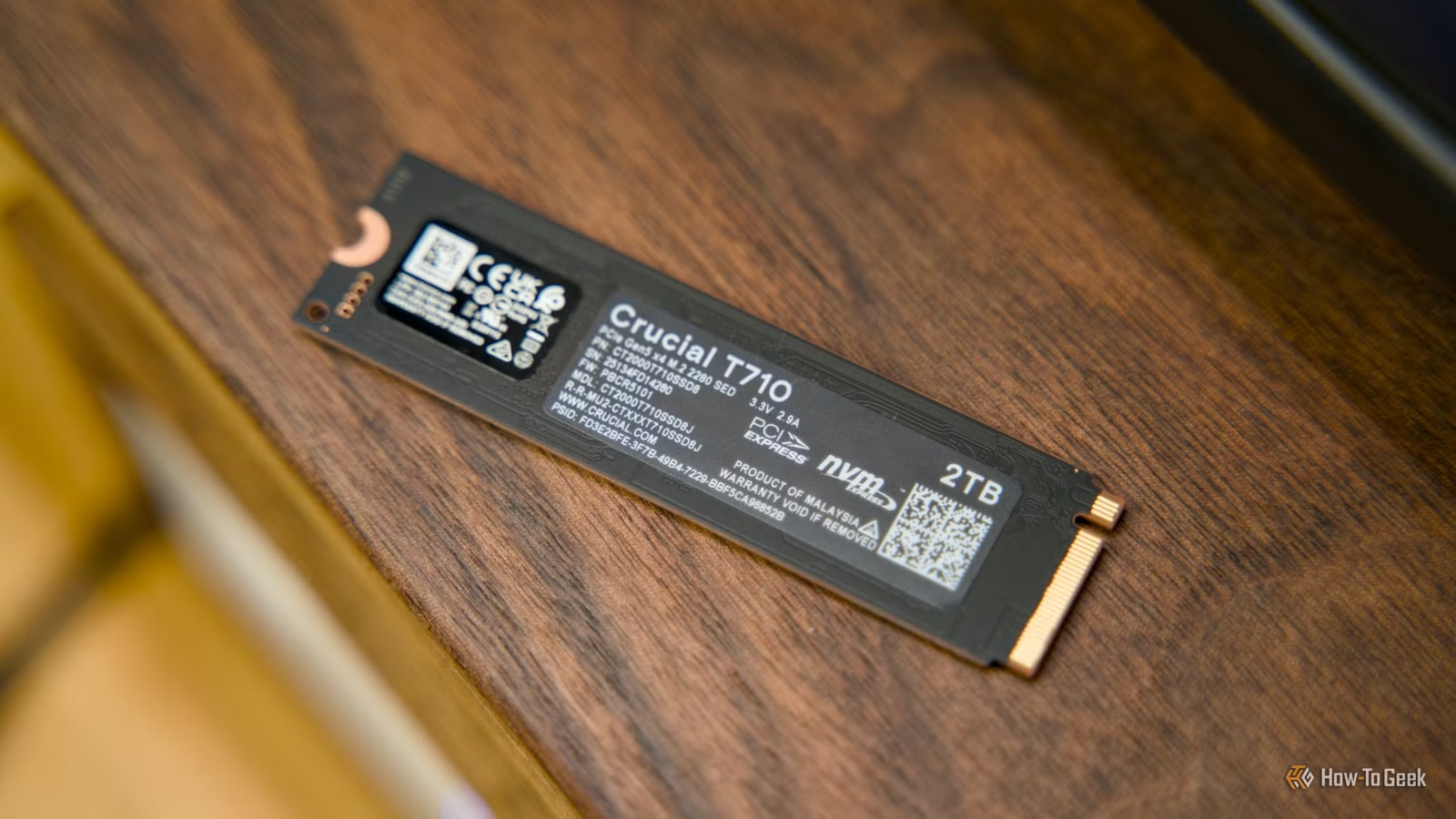
That external SSD sitting in your drawer? It’s getting slower right now, even though you’re not using it. And if it’s a backup drive you paid good money for, that’s a problem worth fixing.
Here’s what’s happening: SSDs (solid-state drives) store data as tiny electrical charges inside memory cells. Over months without power, those charges weaken—especially if the drive is warm, full, or already old. When you finally plug it in, the controller has to work harder to read the data cleanly, and you notice slowness, pauses, or files that won’t open properly.
The second problem is sneakier. While unplugged, your SSD can’t run TRIM, garbage collection, or wear leveling—the background housekeeping that keeps drives fast. If you dumped files onto that drive months ago and never cleaned them, it comes back sluggish.
What to do with a slow SSD you just plugged in
First: give it time. Connect your SSD the proper way (internal M.2 slot or external enclosure), let your computer find it, then just leave it idle for a while. The controller needs power to catch up on all that missed cleanup work. Slow performance right now doesn’t mean it’s broken.
Second: run TRIM. On Windows, open “Defragment and Optimize Drives,” select your SSD, and click Optimize. This tells the drive which deleted files it can forget about. Don’t panic at the word “optimize”—Windows handles SSDs differently than old hard drives.
Third: wait before using it hard. After TRIM runs, leave the SSD alone for a bit. Don’t immediately copy gigabytes of files or run speed tests. Garbage collection needs time and free space to clean up properly.
How to keep a backup SSD healthy before it goes in the drawer
- Delete old junk. Before you stop using it, clear out files you don’t need. Leave 10–20% of the drive empty. SSDs need free space to shuffle data and keep performance from tanking.
- Check firmware is current. Visit your SSD maker’s website (Samsung Magician, for example) and update the drive’s firmware if needed.
- Check the health once. Use a free tool like CrystalDiskInfo to see the drive’s status before you pack it away. This gives you a baseline.
- Plug it in every few months. Even just once a quarter, connect it, let it power up for 30 minutes, then unplug it. This lets the controller run maintenance.
If it’s still slow after all that
The problem might not be the drive itself. Check if you’re using a slow USB enclosure, plugging it into an older USB 2.0 port, or connecting through a slow M.2 slot. Also re-run CrystalDiskInfo to see the drive’s temperature and health status.
Bottom line: Your backup SSD isn’t useless—it just needs basic care. Before you stick it away, clear space and update firmware. When you use it again, give it power and time. And every couple of months, plug it in for a quick check. A 30-minute idle period every quarter is all it takes to keep it fast and trustworthy.
With SSD prices remaining high globally, making your current drives last longer makes real sense. Don’t let that backup just rot.



Leave a Reply