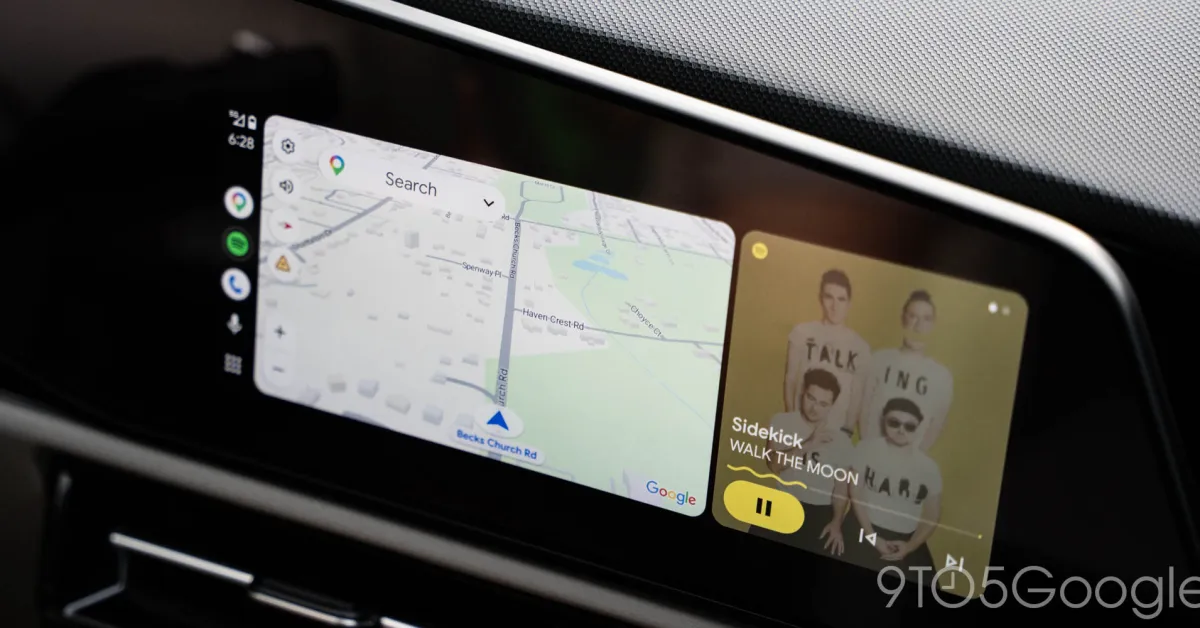
If your Android Auto keeps crashing when you plug your phone into your car, you’re not alone. Reports suggest a recent update may be causing problems for some drivers, leaving them without navigation, music, or hands-free calling while on the road.
Here’s what you need to know and what to do about it.
What’s happening with Android Auto?
Android Auto, the app that mirrors your phone to your car’s dashboard screen, has been crashing for some users. The app either won’t start at all or closes unexpectedly while you’re driving or trying to use it.
Not everyone is affected, and it’s unclear exactly which devices or configurations are experiencing the most issues. If your commute depends on Android Auto for navigation or calls, this is a real headache.
Who should worry about this?
Drivers in Ghana and across Africa who rely on Android Auto for daily navigation, especially for Uber, Bolt, or long-distance travel, are most affected. If you use it to avoid data costs by using offline maps or to keep your phone safe while driving, losing Android Auto is inconvenient and risky.
What can you do right now?
First, try the basic fixes:
- Restart your phone and unplug it from the car, then reconnect.
- Check if clearing the Android Auto app cache helps: go to Settings > Apps > Android Auto > Storage > Clear Cache.
- See if there’s an update available for Android Auto in the Google Play Store.
- Try restarting your car’s system if your vehicle allows it.
If that doesn’t work, consider rolling back the update:
If you suspect the latest Android Auto update is causing your crashes, you can try downgrading to the previous version. In the Google Play Store, find Android Auto, tap the three-dot menu, and look for an option to uninstall recent updates. This should revert to an earlier version.
If crashes continue:
Try restarting your phone in Safe Mode to see if another app might be conflicting with Android Auto. This can help isolate the problem.
What should you watch for?
It’s possible a fix may be released soon. Check the Google Play Store periodically for a new Android Auto update. When a new version appears, you may want to check tech news or user reports to see if the issue has been resolved before updating.
In the meantime, if you need navigation urgently, use Google Maps directly on your phone (with a phone holder or arm mount) or switch to offline maps temporarily.
Have you hit this crash? Share what device you’re using and whether any of these approaches worked for you.


Leave a Reply