Are you looking to reset your Android phone?
If so, you’ve come to the right place. In this article, we’ll walk you through the steps on how to reset your Android phone.
Resetting your phone can be a helpful solution if you’re experiencing issues with your device or just want to start fresh with a clean slate.
It’s important to note that resetting your phone will erase all of your data, so it’s essential to back up your information before you begin the reset process. In this guide, we’ll go over everything you need to know about how to reset your Android phone.
Resetting your android phone
When you’re ready to sell or give your phone away, you’ll need to know how to reset an Android phone. Even though you’re thrilled to be switching to one of the best phones available, you still need to ensure that your old device doesn’t compromise your security or privacy by completely wiping the phone of all the sensitive data it contains, including passwords, private keys, and data from Google Accounts and other apps. You must conduct a factory reset on your smartphone in order to achieve that.
On Android smartphones like Samsung and Pixel, the processes to factory reset an Android phone will differ slightly, thus we’ve covered both of them below. Here’s how to reset an Android phone without further ado.
How to factory reset a Samsung phone (Android version 5.0 and above)
Step 1: Click Apps
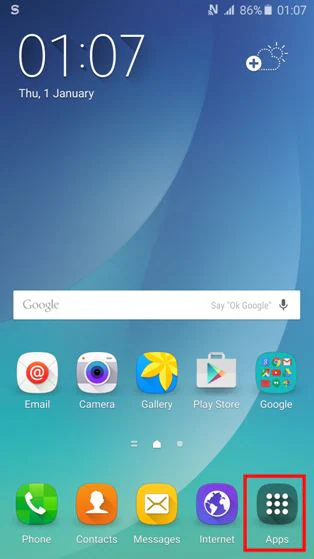
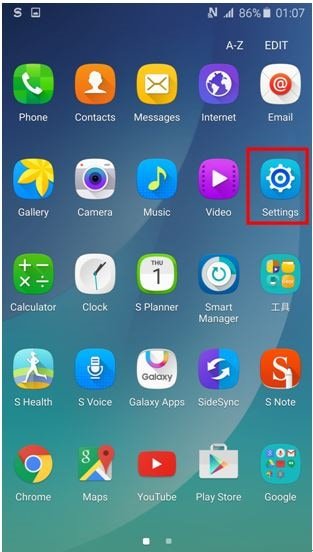
Step 2: Select Settings
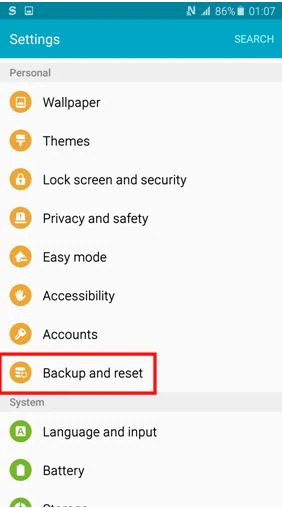
Step 3: Select Backup and Reset.
Step 4: Tap Reset factory data.
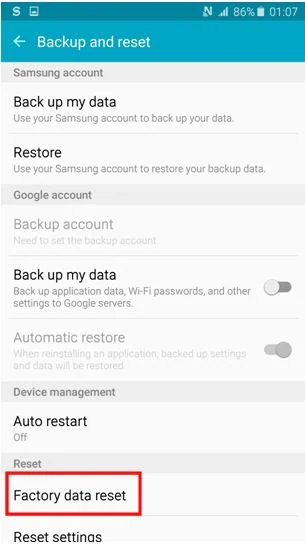
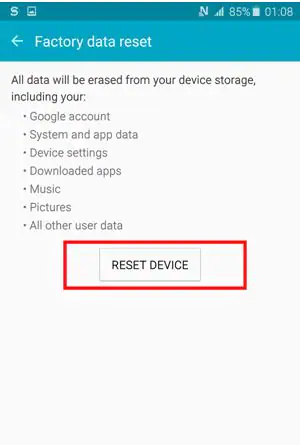
Step 5: Select Reset Device
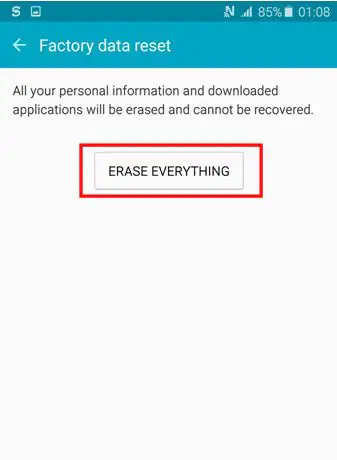
Step 6: Select Erase Everything.
How to factory reset a Samsung phone (Android version 5.0 and below)
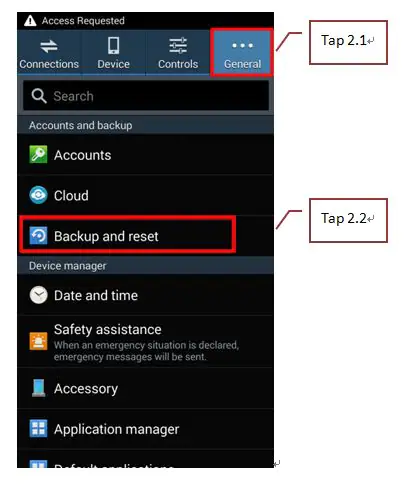
Step 1: First tap Settings
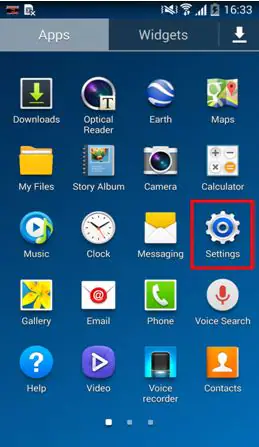
Step 2: Then tap General & Backup and reset
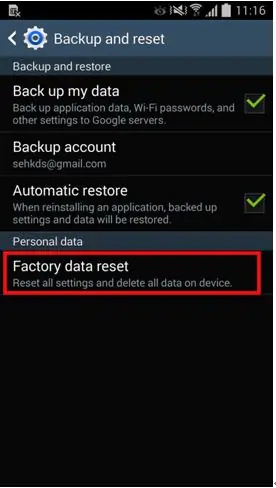
Step 3: Tap Factory data reset
Step 4: Tap Reset device
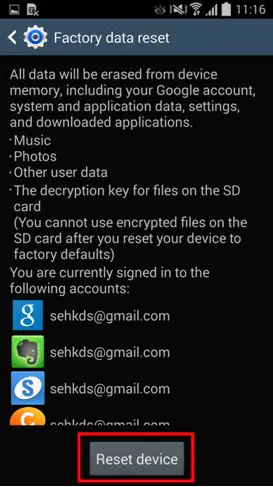
Step 5: Tap Delete all

How factory reset a Samsung Phone using the ‘Recovery Mode’
You should use the “Recovery Mode” to perform a factory reset if your phone’s screen is frozen or it won’t turn on.
Please be aware that carrying out this method will completely delete all customer data. To protect your data on the device, please perform a data backup first.
Step 1: Hold the Volume Up, Home, and Power keys simultaneously.
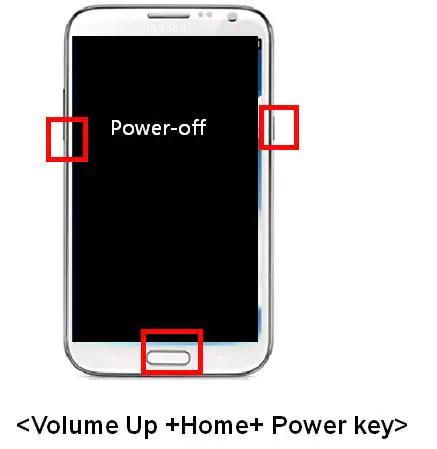
Step 2: When the Android recovery mode displays, use the volume keys to choose: erase data/factory reset.
step 3: Use the power key to enter.
How to factory reset a Google Phone
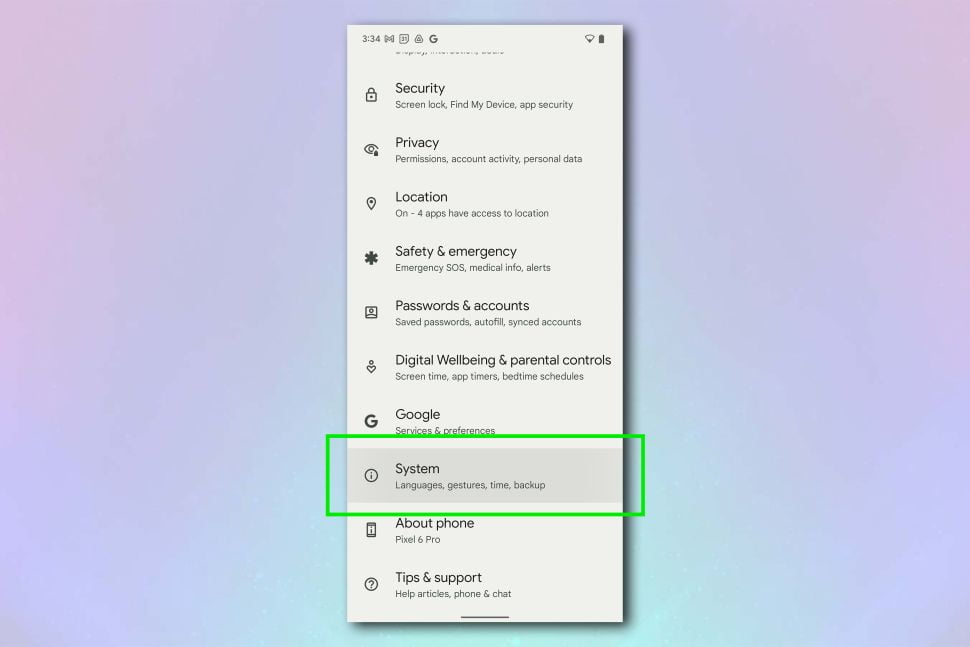
Step 1: Navigate to settings, scroll down, and select System.
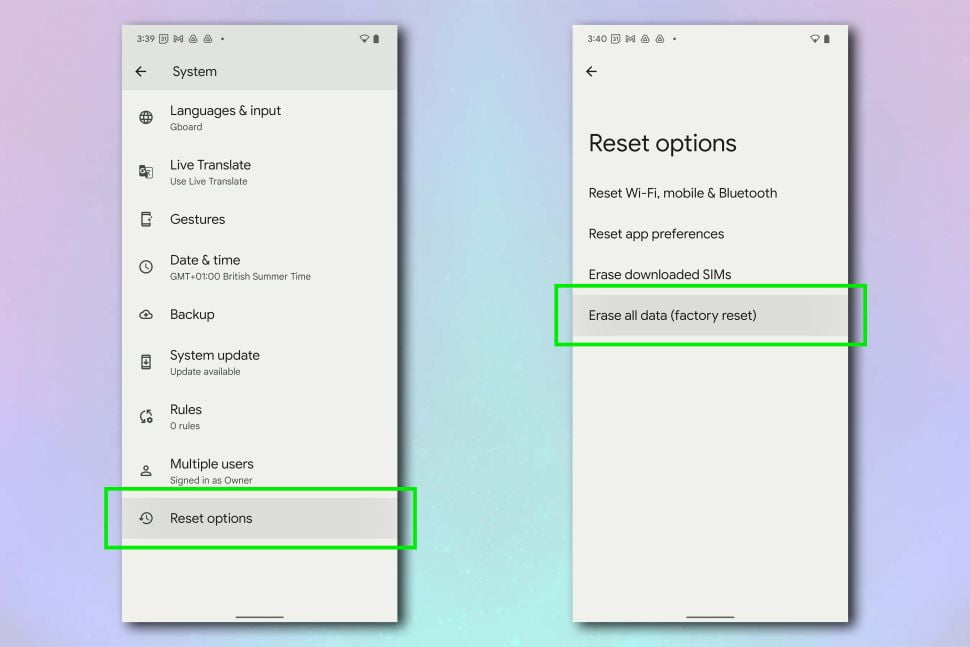
Step 2: Hit Erase all data after selecting Reset options (factory reset).
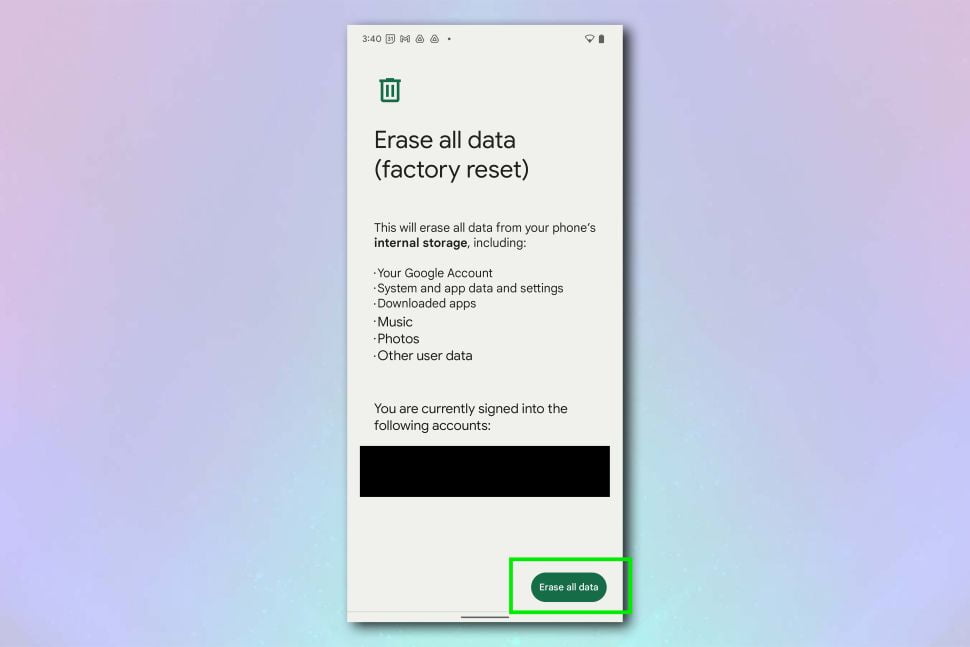
Step 3: Enter the PIN code you use to unlock your device after tapping the Erase all data button
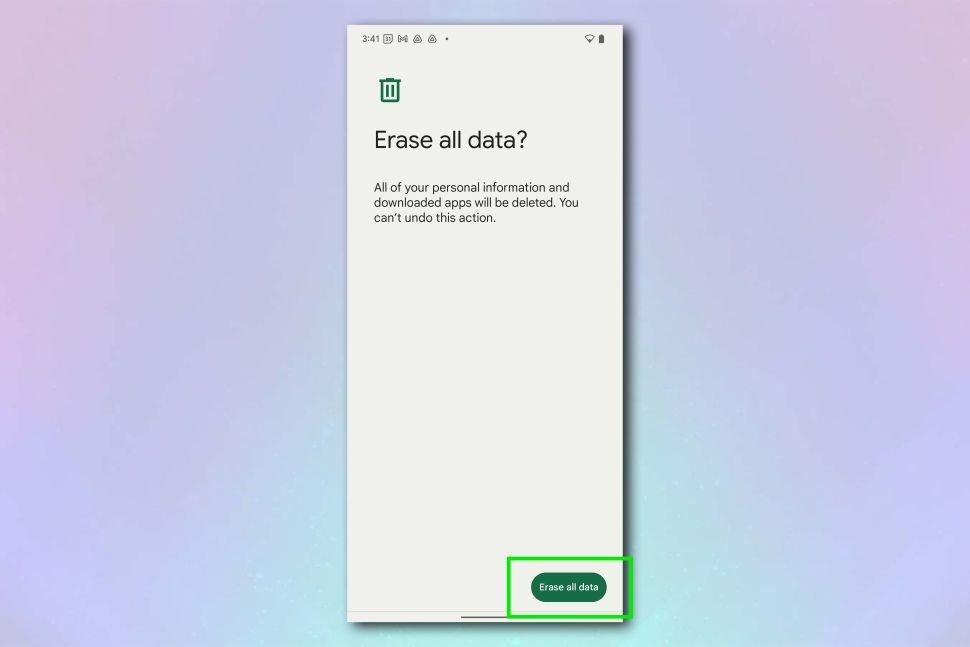
Step 4: Your phone will start to reset once you tap Erase all data.
In conclusion, resetting your Android phone can be a helpful solution for a variety of issues, such as fixing errors, speeding up performance, or removing personal data before selling or disposing of your device.
However, it’s important to be aware that resetting your phone will erase all of your personal data, so make sure to back up any important files beforehand. Additionally, make sure to read the instructions carefully and follow the steps correctly to avoid any potential complications. By following these guidelines, you can successfully reset your Android phone and enjoy its renewed performance. You may also want to see our guide on how to reset an iPhone.